
Getting clean, professional audio out of OBS is one of those things that sounds simple until you actually try to do it. The built-in filters are a decent starting point, but they leave a lot of room on the table when it comes to controlling your microphone dynamics, cutting background noise, or making sure your stream is hitting the right loudness targets for the platform you’re broadcasting on.
The good news is that OBS supports VST plugins directly, which opens the door to using the same kinds of tools that professional audio engineers work with every day.
Every plugin on this list does something specific and does it well, whether that’s mastering-grade EQ, intelligent noise suppression, transparent compression, or LUFS metering you can trust. Some are completely free, and a couple are paid but genuinely worth it.
I’ve made sure each one is OBS-compatible and practically useful for streamers, podcasters, and anyone recording voice through OBS on a regular basis.
1. iZotope Ozone EQ

iZotope Ozone EQ is the kind of plugin that makes you wonder why you weren’t using it sooner. It’s based on the algorithms from iZotope’s full Ozone 12 mastering suite and is available completely free as part of Native Instruments’ Komplete Start bundle, with no feature locks and no trial period.
For OBS users, you get a mastering-grade parametric EQ that handles everything from subtle tone shaping to surgical problem frequency removal, and it fits right into your VST filter chain without any fuss.
What I appreciate most about this one is how much it gives you for free. You get up to 8 fully adjustable EQ bands, a choice between Analog (minimum-phase, warmer character) and Digital (linear-phase, transparent) filter modes, and Mid/Side as well as Left/Right channel processing so you can address stereo issues with real precision.
I found the Transient/Sustain channel mode particularly interesting since it lets you EQ the attack and sustain portions of a sound separately, which is genuinely unusual at any price point. The Delta monitoring function lets you solo just what the EQ is changing, which makes finding problem frequencies in your microphone signal much faster than guessing by ear.
- Analog and Digital Modes
You switch between minimum-phase Analog filters for a warmer, slightly colored sound and linear-phase Digital filters for completely transparent processing. For voice in OBS, the Analog mode tends to sound more natural on a clean microphone signal, while Digital is the better choice when you need phase-accurate cuts around specific problem frequencies.
- Mid/Side and Left/Right Processing
Each band can be set to process the Mid channel, Side channel, Left channel, or Right channel independently, which gives you a level of stereo control that most free EQ plugins simply don’t have. For a microphone in OBS this is genuinely useful for tightening the center image of your voice without touching the sides of the stereo field.
- Transient/Sustain Modes
A unique channel processing mode that lets you apply separate EQ curves to the transient and sustain portions of the incoming audio. This means you can brighten the attack of your voice without adding harshness to the sustained body of the sound, which is a much more surgical approach than standard static EQ.
- Delta Monitoring
Holding Alt while clicking any EQ node solos only the frequencies that node is affecting, so you can hear exactly what the EQ is removing or boosting in isolation. This makes it dramatically faster to zero in on problem frequencies in your microphone or audio chain rather than sweeping by ear.
2. ReaGate
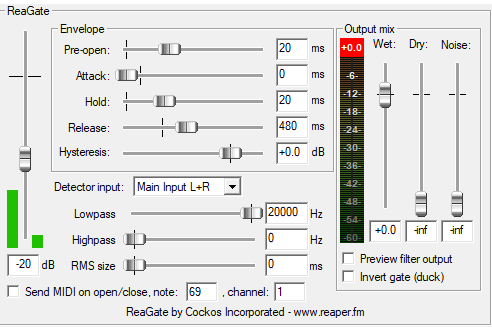
ReaGate is part of the free ReaPlugs VST FX Suite from Cockos, the team behind the REAPER DAW, and it’s been called the best freeware noise gate ever made on KVR, which is not a phrase the audio community throws around lightly. For OBS, this is the go-to choice when you want to cut microphone bleed, keyboard noise, or room sound between sentences without your gate sounding robotic or unnatural. The level of control it gives you is genuinely more than you’d expect from something free.
I love how the sidechain filtering in this plugin changes the game for voice gating specifically. You can apply a high-pass or low-pass filter to the sidechain signal so the gate responds only to the frequency range your voice actually lives in, which prevents low-frequency rumble or high-frequency hiss from triggering or holding the gate open inappropriately. That alone puts it miles ahead of OBS’s built-in noise gate for voice work.
I noticed that the Hysteresis control is where things get really interesting, since positive values effectively turn the gate into a triggered envelope generator, which opens up creative and practical gating behaviors that standard gates can’t do. It runs as a VST2 plugin, works in Windows and is WINE-compatible, requires no installation, and has no copy protection of any kind.
- Sidechain Filters
High-pass and low-pass filters on the sidechain detector let you restrict what frequency range the gate listens to when deciding whether to open or close. Setting a high-pass around 80-100 Hz means low-frequency room noise and desk vibration won’t trigger the gate, and your voice will open it cleanly every time you speak.
- Lookahead Pre-Open
The Pre-open parameter gives the gate a lookahead function so it opens slightly before the signal crosses the threshold. This preserves the attack of your voice or any transient sound, which means words starting with hard consonants don’t get clipped by the gate before it has a chance to respond.
- Hysteresis Control
The Hysteresis slider sets independent open and close thresholds for the gate, which prevents the chattering effect you get when a voice signal hovers around the gate’s threshold. Negative values lower the close threshold for smooth operation, and positive values, unique to this plugin, turn the gate into a triggered envelope generator for more advanced behavior.
- MIDI Send on Open/Close
ReaGate can send a MIDI note whenever the gate opens or closes, which is useful for drum replacement and triggered events. In an OBS context this is less common but genuinely useful if you’re triggering samples or events synchronized with your voice.
- No Installation Required
ReaGate is part of the ReaPlugs standalone suite that drops directly into any folder you point OBS to, with no installer, no copy protection, and no registration. For OBS users who want to be up and running in under five minutes, this is as fast as it gets.
3. TDR Nova
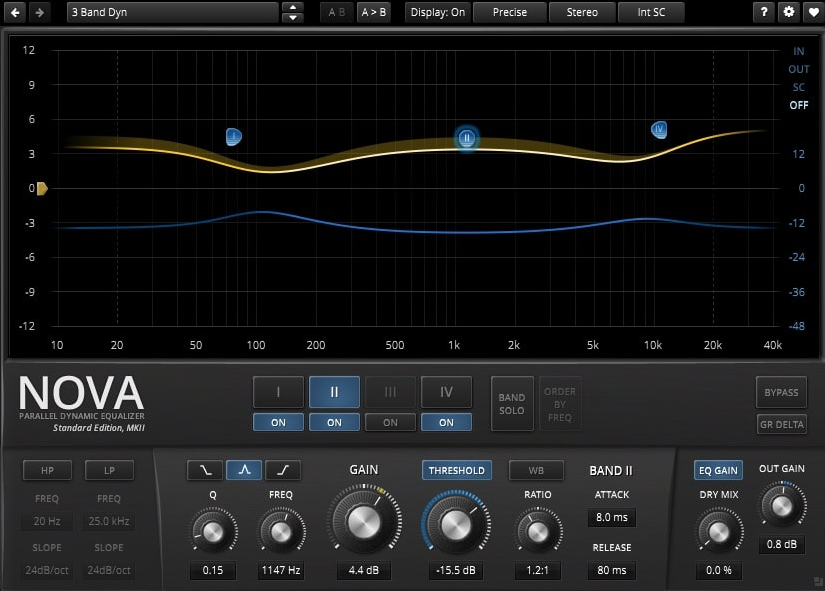
TDR Nova from Tokyo Dawn Labs is a free parallel dynamic equalizer that does something most static EQs can’t: each of its four bands can behave as a normal EQ, a dynamic EQ that only acts when the signal in that frequency region exceeds a threshold, or both at the same time.
For OBS streaming, the real value here is in the dynamic EQ behavior. Instead of statically cutting a harsh frequency in your microphone and making your voice sound thinner all the time, you can set that band to only compress when the harshness actually appears in your voice, leaving the tone of your speech natural at lower levels and controlled only when it needs to be.
I found that this approach is much more transparent than a static EQ cut at the same frequency, and it sounds noticeably more natural in long streaming sessions.
- Four Dynamic EQ Bands
Each parametric band has its own Threshold, Ratio, Attack, and Release controls that allow it to function as a dynamic processor in addition to a static EQ. You can apply static EQ and dynamic compression from the same band simultaneously, and the behavior can swing from gentle downward compression to multiband expansion depending on how you set the ratio direction.
- Wideband Compressor
An independent wideband compressor section operates across the full frequency range separately from the band dynamics. The WB button links the wideband compressor to the band dynamics for combined behavior, and the Sticky mode (Alt-click on Threshold) excludes individual bands from the wideband processing, which effectively gives you a fully configurable multiband compressor inside a single plugin.
- GR Delta Monitoring
A GR Delta switch solos only the gain reduction signal rather than the processed output, letting you hear exactly what the dynamic section is removing across different frequencies. This is particularly useful when setting dynamic EQ bands on voice to make sure you’re catching the right frequencies without over-processing.
4. Youlean Loudness Meter
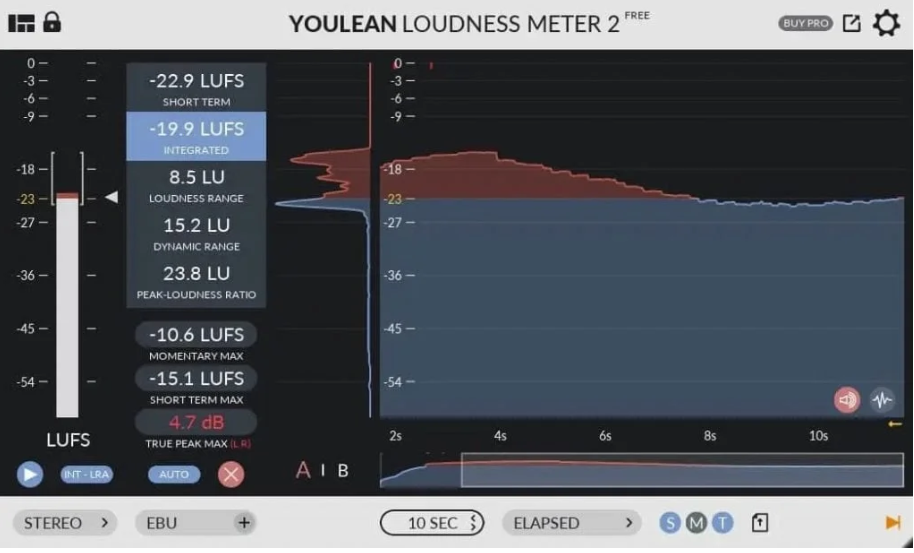
You might think metering is optional for OBS streaming, but I believe it’s actually one of the most practical things you can add to your audio chain if you care about how your content sounds across different platforms.
Youlean Loudness Meter won the KVR Developer Challenge 2016 and has since become one of the most widely used loudness measurement tools in production, measuring LUFS/LKFS perceived loudness according to the ITU-R BS.1770-4 standard. It’s available as a VST2, VST3, AU, and AAX plugin alongside a fully featured standalone app.
The free version gives you everything you need for accurate measurement, including Momentary, Short-term, and Integrated LUFS readouts, True Peak detection, and a loudness history histogram that fills in blue when you’re below your ceiling and red when you go over.
The pro version adds streaming platform presets for services like Spotify, YouTube, Apple Music, Netflix, HBO, and Disney+, A/B comparison states, graph export, and file drag-and-drop analysis. I’d say the free version is more than enough for most OBS users, but if you’re producing professional broadcast or podcast content, the Pro version is a genuinely worthwhile upgrade.
- LUFS/LKFS Measurement
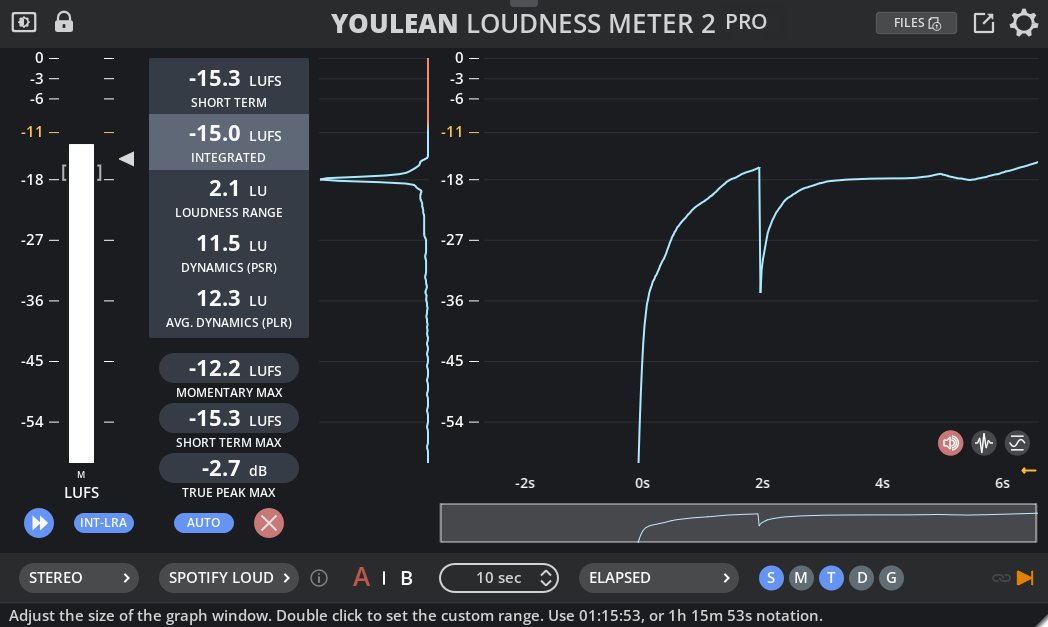
Measures perceived loudness according to the ITU-R BS.1770-4 standard with simultaneous Momentary, Short-term, and Integrated LUFS readouts displayed in real time. This is the measurement that streaming platforms and broadcast standards use to normalize your audio, so knowing your numbers means you can deliver content that won’t be turned down or sound crushed after platform normalization.
- Loudness Histogram
A continuously updating graph shows loudness over time, with the display filling in blue for audio below your ceiling and red for anything that goes over. This gives you an immediate visual read on the dynamic consistency of your stream, making it easy to spot sections where your voice is dropping too quiet or pushing too hard without listening back.
- True Peak Detection
Displays the true maximum level of your audio signal after digital-to-analog conversion and format resampling, which is different from the sample peak your regular level meter shows. Keeping true peak below -1 dBTP prevents clipping artifacts that appear after platform encoding even when your DAW meters look clean.
- Streaming Platform Presets (Pro)
The Pro version includes preset loudness targets for Spotify, YouTube, Apple Music, Apple Podcast, Amazon Music, Netflix, HBO, Disney+, and more, so you can set the exact target for wherever your content is going and see exactly how far off you are in real time. Custom presets are also saveable for recurring workflows.
- Resizable GUI with Dark Theme
The interface scales freely to fit any screen layout, has a dark theme that’s easy on the eyes during long sessions, and supports a mini mode that collapses to a compact display if you don’t need the full histogram view. It also runs as a standalone app if you want to analyze audio files separately from your OBS session.
5. Klevgrand Brusfri
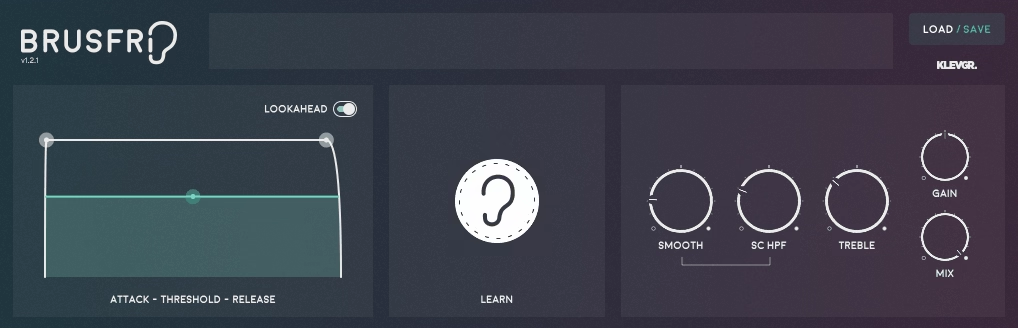
Rather than using phase reversal like most noise reducers, which often introduces audible squishy or warbling artifacts on the processed signal, Brusfri uses multiple frequency-trimmed expanders that work independently across the spectrum to silence noise without touching the phase of the original audio.
I must say this is probably my recommendation when you need something beyond what RNNoise can do and want a paid option that’s straightforward enough to use in under a minute. It retails around $30-49 and is well worth it for streamers who deal with persistent HVAC hum, electrical hiss, fan noise, or headphone bleed on their microphone.
- Frequency-Trimmed Expanders
Instead of phase cancellation, Brusfri builds a noise profile from a short section of silence and uses it to configure a bank of narrowband expanders that independently gate noise across the frequency spectrum. This approach eliminates the warbling and squishy artifacts that appear in most phase-reversal noise reducers when the signal is heavily processed.
- Learn Button
Holding the Learn button for just one to two seconds of noise-only audio automatically sets the internal expander thresholds based on the detected noise profile. You don’t need to understand the underlying processing to get a clean result, and the whole setup takes under a minute from opening the plugin to having noise-free audio.
- Smooth, HPF, and Treble Controls
The Smooth control adjusts the ratio of the internal expanders, producing more transparent results at lower values and more assertive noise rejection at higher ones. The HPF sets a low-cut filter in the sidechain to prevent low-frequency rumble from dictating the expander behavior, and the Treble control adds high-frequency compensation after processing to restore any top-end loss from heavy noise reduction.
6. MeldaProduction MCompressor
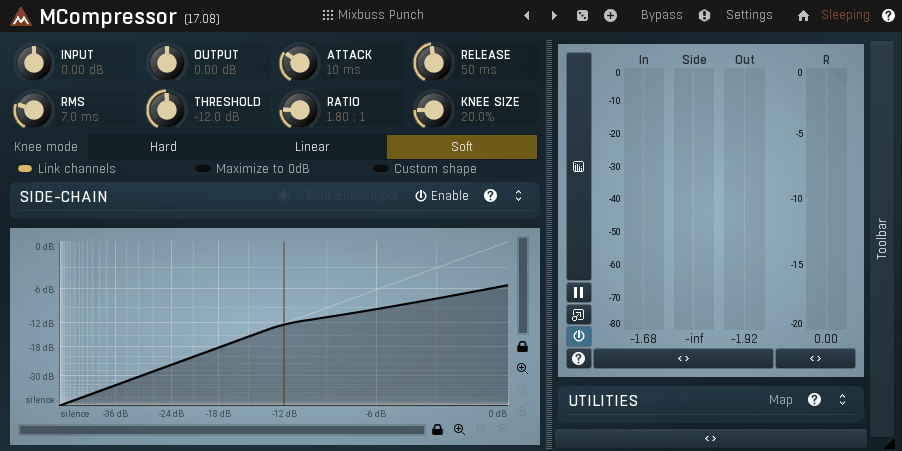
MCompressor from MeldaProduction is part of the MFreeBundle, which gives you 37 free plugins in a single download, and MCompressor alone would justify that download on its own. KVR reviewers have called it more versatile than most paid compressors on the market, and Bedroom Producers Blog highlighted its custom compression shape editor as something no other plugin offers at any price.
It runs as VST, VST3, AU, and AAX on both Windows and Mac, handles mid/side encoding, separate left and right channel processing, and supports upsampling from 1x to 16x for minimizing aliasing artifacts in the compression processing.
For OBS specifically, I would recommend it for leveling out your microphone dynamics between quiet and loud moments in your stream. The visual compression shape display makes it genuinely easier to understand what your compressor is doing compared to staring at a gain reduction meter, and I found it particularly helpful when dialing in compression for voice because you can see the entire dynamic response curve changing as you adjust the threshold and ratio together.
- Custom Compression Shape
A graphical curve editor lets you draw a fully custom dynamic response shape rather than working with a fixed threshold-ratio model. You can create standard compression, gentle expansion, a hard gate effect, or unusual curves for creative processing, all from the same editor and with real-time visual feedback of where your input signal is hitting on the curve.
- Visual Shape Graph with Signal Indicator
The compression shape display shows your actual input level as a moving indicator on the graph so you always know which part of the dynamic response your signal is hitting. This real-time visual feedback is one of the most genuinely useful educational tools in any compressor plugin and makes setting compression parameters for voice much more intuitive than working by ear alone.
- Sidechain with High-Pass and Low-Pass Filters
Enabling the sidechain section adds both a high-pass and low-pass filter to the detector signal, allowing you to restrict the frequency range that triggers the compression. For voice in OBS this is particularly useful for making the compressor respond to midrange speech content without being triggered by low-frequency room noise or high-frequency breath sounds.

Hello, I’m Viliam, I started this audio plugin focused blog to keep you updated on the latest trends, news and everything plugin related. I’ll put the most emphasis on the topics covering best VST, AU and AAX plugins. If you find some great plugin suggestions for us to include on our site, feel free to let me know, so I can take a look!