
Clipper plugins have quietly turned into one of the most useful tools in modern music production, and more producers are reaching for them every day. What used to feel like a niche trick is now showing up in hip-hop, trap, EDM, pop, metal, and basically every genre that lives or dies by loudness. Unlike traditional limiters, clippers handle peaks in their own way, opening up options for loudness, warmth, and character that other tools just can’t match.
A good clipper gives you control over your mix’s dynamics while adding punch and presence without the pumping or squashing you get from a limiter. Some clippers go for transparent peak control, while others lean into saturation, harmonics, or grit that shape your sound in creative ways. When it comes to chasing competitive loudness on a master or just taming a snare transient, having the right clipper in your toolkit makes a real difference.
In this guide, I’ll walk through both paid and free clipper plugins so you can find one that fits your workflow and budget. I’ll also break down how clippers actually work, how they differ from limiters, and share a few tips for using them without overdoing it.
1. Yum Audio Crispy Clip
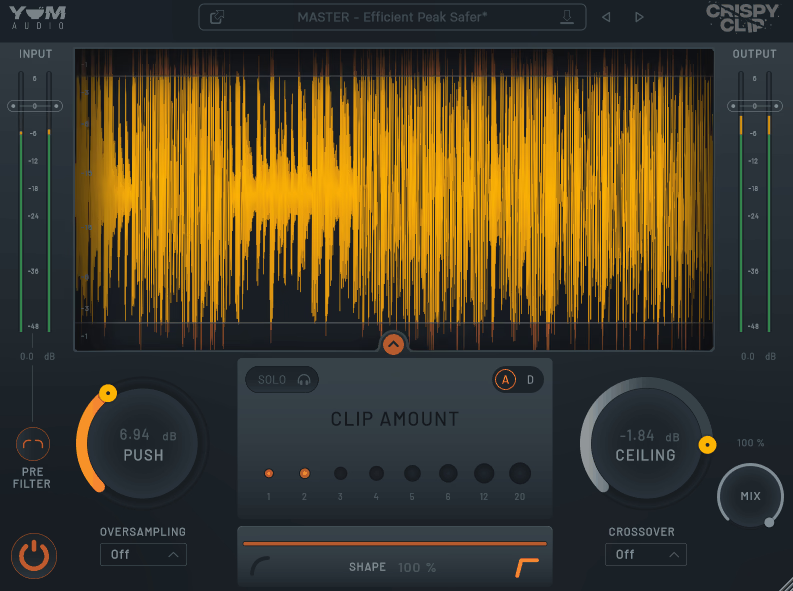
Precision clipping with creative tonal options is what you’re getting with Crispy Clip, and the workflow stays simple while still giving you a lot of room to shape the sound. The standout feature is the easy way you can move between soft and hard clipping styles using the Shape parameter.
You can fine-tune how peaks are handled, from subtle saturation to strong, punchy clipping, all with one control. The plugin feels polished and modern, and it offers more tonal flexibility than basic single-mode clippers I’ve tried.
There’s a Mix control so you can blend processed and dry signals for parallel clipping. That helps you keep your transients while still pushing your sound harder. The Crossover control adds even more precision by letting you focus the clipping on a specific frequency range before or after blending. On top of that, the preset library is genuinely useful for both mixing and mastering work.
- Shape Your Sound From Soft To Hard Clipping
The Shape parameter defines how the clipper behaves, letting you transition between soft, smooth clipping and hard, sharper clipping. As a result, you get a wide tonal range without switching modes or loading presets. From my experience, this is what makes the plugin feel modern compared to older single-mode tools.
- Mix Control For Easy Parallel Clipping
You can blend clipped and unclipped signals right inside the plugin, which makes parallel transient shaping simple and keeps your workflow quick. For instance, when I’m clipping drums hard but want to keep some of the original snap, this control saves a routing step.
- Crossover Control For Frequency-Focused Processing
The Crossover lets you control clipping within chosen frequency ranges, giving you tonal shaping options similar to a simple multiband workflow without needing a full multiband processor. In other words, you can hammer the low end without smashing your highs.
- Supports Up To 16x Oversampling
The oversampling system improves accuracy and reduces aliasing at higher drive levels, which is where most clippers start to fall apart. It also keeps the clipping curve smooth and refined, even with heavy processing.
- Clear And Refined Visual Feedback
The interface stays clean and minimal while still giving you enough information to make quick decisions. It’s built around real-time feedback rather than burying you in menus.
- Wide Plugin Format Support
Available for both macOS and Windows, with broad plugin format support that fits into any DAW you’re working in.
Check the full review here.
2. Slate Digital Bus Clipper
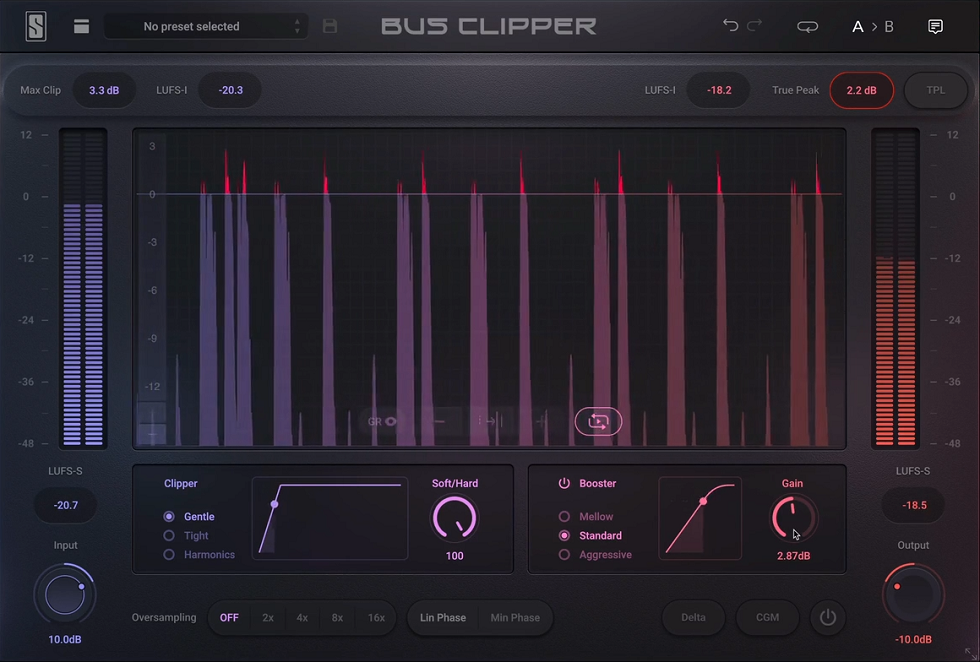
What sets Bus Clipper apart is the two-stage architecture: a Clipper stage that shaves transient peaks sample-by-sample, followed by a Booster stage that uses waveshaping to lift perceived loudness. The combo gets you to that modern loudness target without the mushy intermodulation artifacts you usually get from time-based limiting alone.
- Two-Stage Clipper And Booster Architecture
The processing chain runs in series. Stage 1 is a sample-by-sample Clipper that instantly turns down any signal above the threshold (no attack, release, or lookahead). Stage 2 is a Booster that uses waveshaping to increase perceived loudness without raising peak levels. Quieter parts get lifted while peaks stay put, and that’s what gives the plugin that modern, loud sound without typical limiter artifacts.
- Three Clipping And Booster Modes
You get three clipping modes (each customisable with the Shape/Harmonics knob) that let you move between hard clipping, gentle saturation, and precision harmonic generation. The Booster also has three modes (Mellow, Standard, and Aggressive), each shaping the harmonic character of the loudness boost. The real-time transfer function display shows you the exact curve being applied, which is genuinely useful for visual learners.
- Mastering-Grade Metering
You get Integrated Loudness (LUFS-I), Short-Term Loudness (LUFS-S), and True Peak metering in real-time for both input and output. There’s also a gain reduction-style meter so you can monitor clipping the same way you’d monitor a compressor. Needless to say, this is built for engineers who actually care about hitting target loudness values for streaming.
- Delta Listen And Constant Gain Monitoring
Two workflow features that punch above their weight: Delta Listen lets you solo exactly what’s being removed (so you can hear if you’re shaving transients you actually wanted to keep), and Constant Gain Monitoring (CGM) matches output level to input level so you can A/B the processing without volume bias tricking your ears.
3. PluginBoutique Dual Clip

Hard and soft clipping in one easy-to-use package is exactly what Dual Clip delivers. The hard clipper quickly cuts peaks, which helps add loudness or grit to drums, while the soft clipper works more like analog distortion and gives your sound a warm, full feel similar to vintage gear.
Turn up the Drive to boost your signal, then use the Curve control to shift the clipping effect toward low or high frequencies. For example, you can warm up a bassline without affecting the highs, or add bite to a snare without making the low end muddy.
- Dual Clipping Modes
You get both hard and soft clipping in one plugin, so you don’t need extra tools. Hard mode is fast and direct, great for drums and controlling transients. Soft mode adds warmth and fullness, more like analog hardware. You can switch modes instantly to match what your track needs.
- Frequency-Focused Curve Control
The Curve knob lets you pick where the clipping happens in the frequency range. Turn it one way to focus on the low end, which is good for bass and kicks. Turn it the other way to target the highs, adding clarity or edge to vocals and synths. In particular, this is what saves you from the “muddy low end, brittle top” problem that plagues a lot of cheaper clippers.
- Smooth Control For Clean Release
The Smooth control adjusts the clipper’s release time to make the sound less harsh. Turning it up makes the clipping softer and less noticeable, which helps when you want more loudness without obvious distortion. It keeps your sound clean while still controlling peaks.
- Simple Interface
Drive, Curve, Smooth, and a mode switch is all you get, and that’s the point. You can hear what each control does right away, so there’s no manual to read. That makes it quick to use when you’re mixing and want to stay creative instead of clicking through menus.
4. Softube Clipper

Pushing tracks harder without that harsh digital crunch is where Softube Clipper quietly does its best work. I reach for it when I want more punch and presence but still want everything sounding polished and controlled. It works for both mixing and mastering, and it slots into your process without making you change how you work. To be honest, I own it myself and use it more than I expected to.
The plugin comes in AU, VST, VST3, and AAX formats. It works on macOS Monterey 12, Ventura 13, Sonoma 14, and Windows 10 and 11. If your system is up to date, you shouldn’t run into compatibility problems.
- Peak Management Without Harshness
The first thing I noticed was how clean the clipping sounds. Even when I cut peaks to get more loudness, it doesn’t feel harsh or brittle. You can add just enough clipping to tighten up drums or vocals without making your mix sound distorted. That makes it a fit for styles where you want more volume but still need clarity.
- Blend Control For Natural Results
The blend option lets you mix the clipped sound with the original, so you can add warmth and grit while still keeping the natural feel of your track. From what I’ve seen, this is the control that separates “clipped to death” mixes from ones that still breathe.
- Simple Interface That Keeps You Moving
The controls are clear, so you can make quick choices without digging through menus or presets. I just drop it on a channel, tweak a few knobs, and keep working. That simplicity helps me stay focused on the music instead of the plugin, and when you’re trying to boost loudness or add character to tracks, it makes a real difference.
I own this plugin and use it often. The trial is worth a try if you want to test it on your own material.
Check the full review here.
5. MMS NovaClip

Aggressive music styles that need real loudness and punch are exactly what NovaClip was built for. The plugin lets you control peak clipping easily, even if you’re not an audio expert, and from my experience it pushes metal and rock mixes harder without making them fall apart on streaming platforms. The simple interface helps you work faster and focus on results instead of menus.
What stands out is how it handles transients. You get that consistent, in-your-face aggression modern heavy music demands. I’ve used it on drum busses, guitar chains, and even full mixes when I needed extra energy.
- Aggressive Clipping Algorithm
The clipping algorithm is built for metal and heavy genres. When I run drums or distorted guitars through it, the plugin adds thickness without making the sound muddy. Even when pushed hard, the clipping still sounds musical, which is rare for tools aimed at this kind of work.
- Easy-To-Use Interface
The controls are simple, so you can start using it right away. You set the clipping amount, adjust the output, and keep working. That kind of simplicity is helpful when you’re mixing and need fast results, especially on aggressive material where you want strong output without extra hassle.
- Free Trial Available
You can test the plugin free for 7 days, which gives you enough time to try it on your own projects. I’d recommend taking advantage of any developer who lets you actually use a plugin in real sessions before buying. It removes the guesswork and lets you decide if it fits your workflow and sound.
It works best if you make modern metal, hardcore, or any genre where loudness and aggression matter. It’s a focused tool that does one thing really well, rather than trying to be everything.
6. Venn Audio V-Clip 2

A soft clipper, a multiband tool, and pretty much everything in between is what you’re getting with V-Clip 2. The developer took an already-strong clipper and rebuilt it from scratch, adding the features you’d actually want without making it bloated.
What I like most is how much control you have without it feeling complicated. You can clip different frequency bands, add pre and post emphasis, split your signal into mid and side channels, and use up to 256x oversampling for extra precision. The interface is modular and resizable, so you can focus on the controls you need and hide the rest.
I’ve used the plugin for both mastering and creative sound design, and it handles both jobs without much fuss. You’re not stuck with just one type of saturation either. There are several asymmetric waveshaping options, so you can choose between gentle warmth or heavy clipping depending on what your track needs. In my opinion, it’s hard to beat for drum work in particular.
- Multiband Saturation And Mid-Side Processing
A big new feature is multiband clipping. You can focus on certain frequency ranges instead of applying the same saturation to your whole mix, which is great for adding weight to your low end without affecting your highs. The mid-side mode adds even more flexibility by letting you process the center and sides separately for better width and clarity.
- Advanced Asymmetric Waveshaping
There are clipping shapes here that go beyond just hard or soft. Asymmetric shapes make your sound feel more musical and less digital, and I use these when I want saturation that blends into the mix, especially on drums or bass where you want punch but not harshness.
- Modular Interface And Up To 256x Oversampling
The interface is clean and easy to adjust, so you can make the meters and controls you use most bigger. The 256x oversampling is more than you’ll ever need in most cases, but it’s useful for mastering or high-frequency sounds because it keeps your signal clean. You can also set the ceiling level exactly where you want it, so you have full control over when clipping starts.
It’s earned its spot on any list of the best clipper plugins.
7. AIR Soft Clipper

Built with MPC standalone users in mind, the AIR Soft Clipper also works well in any DAW, which makes it more flexible than its origin story suggests.
What I appreciate most is how simple it keeps things. You’re not wading through dozens of controls or presets. Instead, you get a clean interface focused on doing one thing really well: adding warmth and controlling peaks without making your mix sound crushed or digital.
The plugin gives you analog-style saturation without needing complex routing or heavy processing chains. I’ve found it especially helpful on drums and bass when you want punch and presence but still need everything to fit in the mix. It adds character without overpowering the rest of the sound.
- Soft Clipping Algorithm
The algorithm uses a gentle clipping curve that rounds off peaks rather than chopping them flat, giving you warmth and fullness that feels musical rather than aggressive. When I push it on a snare or kick, it thickens the sound and brings out harmonics I didn’t even know were there. For instance, it’s great for adding energy without harsh distortion creeping in.
- Broad Plugin Format Support
The clipper supports VST2, VST3, AU, AAX, and MPC standalone systems with version 2.14 or later. If you work on different setups or with other producers, you won’t run into compatibility problems. I’ve used it in Logic, Ableton, and on my MPC without any issues.
- Simple Workflow
There’s nothing to learn here. Set your input, dial in the amount of clipping, and keep moving. That’s part of what makes it good for sketching ideas quickly without breaking your creative flow.
8. W.A. Production RedClip

More than a basic clipper, RedClip is a multiband tool made by award-winning audio engineer Emrah Celik, and you can tell a lot of care went into how it handles loudness. It stands apart from simpler clippers because of the level of frequency control built in.
I really like that it lets you control different frequency ranges on their own. Instead of treating your whole mix the same, you can clip just the low end for more thump or boost the highs for extra energy without making things harsh. That kind of flexibility changes how you mix and master.
The factory presets are actually useful, which isn’t always the case with this kind of plugin. Whether you want a bit of warmth or a lot of loudness, there’s a preset that gets you close, and you don’t have to start from scratch every time.
- Multiband Separation
You can split your signal into different frequency bands and apply as much clipping as you want to each one. For example, I can add punch to a kick drum without affecting vocals, or boost the top end while keeping the bass clean. As a result, it sounds much more musical than just slamming the same gain reduction across the whole spectrum.
- Versatile Use Cases
I use the plugin in different ways depending on the project. Sometimes I put it on individual drums to add character. Other times, I throw it on the master bus during mastering to push loudness without losing clarity. It works in both situations, which makes it more useful than clippers that only fit one job.
- Preset Library
There’s a deep preset library sorted by category. When I’m working quickly, I just pick one that’s close and adjust as needed. The presets range from soft clipping to more extreme effects, so you have lots of options to try, and they save time when you need a starting point.
9. Kazrog KClip 3

Tracks, buses, or full masters all work fine with KClip 3, and what sets it apart is the range of clipping options on offer without making the plugin feel slow or confusing.
The eight clipping modes each have their own sound. You can choose anything from clean, controlled clipping to more saturated, colorful options, depending on what your track needs. The modes include Smooth, Crisp, Tube, Tape, Germanium, Silicon, Broken Speaker, and Guitar Amp, and each one has a distinct character, so you can pick a transparent effect or something with more grit.
- Multiband And Mid-Side Processing
You can split your audio into up to four bands and use a different clipping mode for each. The mid-side mode lets you control how much the center and sides are clipped, which helps keep the stereo image balanced.
- Oversampling Up To 32x
You can adjust both online and offline oversampling. I usually mix with a lower setting and then raise it when exporting to avoid aliasing and keep the sound clean.
- Integrated LUFS Metering
Built-in loudness metering makes it easy to see your master’s level without switching between windows or loading another plugin to check.
- Resizable Interface And Real-Time Visualizer
The window resizes smoothly, and the visualizer shows real-time clipping. It’s a small thing, but it helps you make better decisions on the fly.
- Flexible Threshold Control
You can set low thresholds and really push your audio if needed. It works for both gentle transient control and full-on loudness maximization, which makes it a good single-plugin solution for a lot of different jobs.
10. Canvas Audio Cactus Clipper

Fast, musical clipping and saturation you can adjust quickly is the whole pitch behind Cactus Clipper, and it keeps your workflow smooth instead of bogging you down with controls.
What I like most is how straightforward it feels when you’re actually mixing. If you want clean loudness, it does that. If you want grit and attitude, it delivers that too. The analog-style clipping paired with its built-in saturation stage makes it easy to move between subtle rounding and full-on edge without losing control of your levels. On top of that, the input and output gains can link automatically, so you don’t have to constantly adjust gain staging while making changes.
- Analog-Style Clipping And Drive
The plugin does more than just hard clipping. It combines analog-style clipping with an optional saturation stage. With the variable knee and extra drive circuit, you can get anything from warm, rounded edges to a more aggressive, punchy sound. That’s helpful when you want clipping that adds character, not just controls peaks.
- Linked Input/Output Gain
When you increase the input, the output adjusts to match. That helps you hear the actual effect of the processing rather than just changes in volume, which makes it easier to tell when you’ve gone too far.
- Intuitive Metering
The metering is simple but useful. It clearly shows how much dynamic reduction you’re hitting, which makes dialing in clipping much faster, especially when you’re pushing harder and want to sanity-check your peaks.
- Oversampling And Low CPU Load
You get 4x oversampling for cleaner results while staying lightweight, which makes it fine for stacking on individual tracks without eating your CPU.
11. SIR StandardCLIP

Eight years on the market and still showing up in pro mix chains tells you something about StandardCLIP. It’s one of the longest-standing clippers around, and there’s a reason engineers keep coming back to it.
What I like most is how flexible the clipping process is. You aren’t stuck with just one sound. You can push it for aggressive limiting or pull it back for a smoother, warmer feel. That range makes it useful whether you want to add some grit or just control peaks transparently.
The plugin gives you a lot of control without feeling complicated. Being able to shape exactly how the clipping works (instead of just turning a knob and hoping for the best) is a big reason it stays in my chain. The high-quality oversampling, up to 256x, keeps your sound clean even when you push the levels, which matters for loud mixes that still need to sound musical.
- Flexible Clipping Modes
You can adjust how aggressive or gentle the clipping sounds. I set it as a hard limiter when I need tight peak control, or make it softer when I want more of a saturated sound. Having that range in one plugin is why I keep using it instead of switching between different tools.
- Input And Output RMS Meters
There are RMS meters and a waveform display so you can see exactly what’s happening to your signal. You don’t have to guess if you’re clipping too much or leaving too much headroom, and that kind of visual feedback makes it much easier to land the right amount of processing when you’re working quickly.
- Adds Odd Harmonics
Beyond loudness, you can use the plugin as a creative tool that adds odd harmonics to your signal. In other words, you’re not just controlling peaks, you’re shaping tone. I’ve used it to add presence and bite to drums and synths without loading another saturation plugin into the chain. As a result, it works as both a utility and a creative effect, which makes it more versatile than most clippers.
The UI doesn’t quite hit modern standards, but the sound is what matters, and on that front it earns its spot.
Free Plugins
1. Outobugi Clamp

Free, runs as a VST3 on Windows, and gets the job done without any extra fuss. Clamp is one of those small free plugins that quietly punches above its size when you need quick clipping on drums.
It offers both soft and hard clipping, plus 4x oversampling to keep your sound clean when you push the levels. I use it on drums a lot, especially on kicks and snares that need more punch without getting messy.
The interface is as simple as it gets. There are no endless menus or complicated settings. You choose your clipping mode, set the threshold, and move on. That straightforward approach is great when you want to add energy quickly without overthinking your moves.
- Dual Clipping Modes
You get both soft and hard clipping in one plugin. Soft clipping adds warmth and gentle saturation, which is great for drums or even your master bus when you want more fullness. Hard clipping is more aggressive and works well when you want to shape a sound or add strong punch to individual hits.
- 4x Oversampling
The built-in oversampling helps the plugin avoid sounding harsh or digital. When you use heavy clipping, oversampling cuts down on high-frequency artifacts that can make a mix sound cheap. As a result, you can push levels harder without worrying about harshness creeping in.
- Lightweight And Simple
The plugin is easy on your CPU, and the interface is about as simple as possible. There are no hidden settings or manuals to read. You load it, choose your mode, set the threshold, and get back to your session.
2. Venn Audio Free Clip 2

Building on what worked in the original and making it much easier to use in real projects is what Free Clip 2 brings to the table. Venn Audio updated their old clipper to something modern without making it complicated, which is harder than it sounds.
Now you can zoom in on the waveform both ways, which might seem minor but actually helps a lot when you want to see exactly how much you’re clipping a signal. I feel much more confident adjusting clipping with that view available.
The plugin is resizable and works on any platform, so it fits any screen setup you have. It’s part of Venn Audio’s Free Suite, which offers a solid set of mixing tools with no hidden limits. I’ve tried it on drums, bass, and vocal buses, and it works well on all of them.
- Multiple Clipping Algorithms
There are several waveshaping options beyond just hard clipping. You can pick transparent clipping to catch peaks, or use softer, more saturated shapes to add character. I use the harder settings for drums and the softer ones for synths or vocals when I want warmth without obvious distortion.
- Resizable Waveform Display
The zoomable waveform is the feature I lean on most. You can zoom in horizontally to check timing or vertically to see how much of the signal is being clipped. As a result, it’s much easier to see what’s happening as you work, so you don’t have to rely entirely on your ears.
- Lightweight And Zero Fuss
The plugin won’t slow down your session or require any authorization steps. It’s totally free with no limits, installs quickly, and uses barely any CPU.
3. Yum Audio Crispy Clip Light

A free clipper that does its job without any unnecessary extras is exactly what Crispy Clip Light delivers. Yum Audio focused on the basics while still keeping it professional, which I appreciate when so many free plugins either feel half-finished or piled with features you don’t need.
You get Push and Ceiling controls, which is all you need to shape how the clipping works. Push drives your signal into the clipping point, and Ceiling decides where that point is. It’s simple, clear, and effective without being limiting.
The interface won’t confuse you. Two knobs, clean meters, and you’re clipping in seconds. I’ve used it on drum buses, vocals, and even master chains when I need a bit of controlled distortion without loading something heavy. It handles both soft and hard clipping, so you can go subtle or aggressive depending on your track’s needs.
- Push And Ceiling Controls
The Push knob adds gain into the clipper, which brings more energy and loudness. Ceiling sets the clipping threshold, so you decide where the signal starts to flatten. Used together, the two controls let you balance punch and clarity, and they’re accurate enough for serious work despite how minimal they look.
- Soft And Hard Clipping Modes
You can choose soft clipping for a smoother sound or hard clipping for a stronger effect. Soft mode is great for vocals and melodies when you want warmth without harshness. Hard mode works well on drums and bass when you want more grit. As a matter of fact, it’s pretty rare to find both options in a free plugin.
- Lightweight And CPU-Friendly
The plugin runs smoothly and barely touches your CPU. I’ve used several instances in a session without any issues. It’s built on the full Crispy Clip plugin, so you get the same sound quality in a simpler form. It works on Mac and PC, and supports VST3, AU, and AAX formats in all major DAWs.
4. PeakEater

Open-source, free, and surprisingly capable, PeakEater brings a lot of what you’d expect from paid clippers and gives it away for nothing. The hard/soft clipper plugin runs on Windows, Mac, and Linux, which already puts it ahead of most free options.
What makes it interesting is how it combines ideas from two respected clippers into one simple tool. You get multiple wave-shaping functions to handle peaks in different ways, which means you can push your track louder without worrying about peaks hitting the ceiling. From my experience, it’s actually useful for both transparent loudness and controlled saturation.
The workflow is direct: choose a clipping type, set the ceiling, and boost your signal. Because it focuses on the basics, it’s quicker to use than some paid plugins.
- Multiple Clipping Types
You can switch between different waveshaping functions, so you’re not stuck with a single clipping sound. I’ll choose a harder clip for aggression or a softer shape for something more musical. That flexibility makes it work across different genres and sources, from drums to full mixes.
- Ceiling Control
The plugin clips everything above the ceiling level you set, which keeps your peaks under control. You can boost the overall volume safely without nasty peaks pushing past the maximum. I use it during mixing to add loudness without risking distortion or clipping in my DAW.
- Cross-Platform Compatibility
A lot of free plugins only support one system, but PeakEater runs on Windows, Mac, and Linux. It supports VST3, AU, LV2, and CLAP formats, so you can use it in just about any DAW. As a result, it’s one of the most accessible free clippers out there.
- Inspired By Pro Tools
The developer built it by merging features from Kazrog KClip 3 and VennAudio Free Clip. If you’ve used either of those plugins, the workflow will feel familiar. It offers a taste of high-end clipping tools without the cost.
Frequently Asked Questions (FAQs)
What does clipper plugin do?
A clipper plugin shaves off the loudest peaks of your audio signal once they hit a set threshold, increasing overall loudness without the pumping a limiter can cause. Hard clipping cuts peaks sharply for an aggressive sound, while soft clipping rounds them off gently, adding warm harmonic saturation.
How to use clipper VST?
Insert the clipper on your drum bus or master chain before your limiter, then raise the input gain until you see peaks just starting to clip. Set the ceiling where you want your maximum level and adjust the knee or soft clip amount to taste. Always enable oversampling to avoid harsh digital aliasing.
What's the difference between a clipper and a limiter?
A clipper chops off peaks instantly with zero attack and release time, shaving transients the moment they cross the threshold. A limiter reacts over time using attack and release settings, which controls peaks more transparently but can cause pumping or squash your dynamics if you push it too hard.
Should I put soft clipper on master?
Yes, placing a soft clipper on your master bus before your limiter is a common technique for getting louder masters that still sound open and punchy. It shaves off the sharpest transients gently so your limiter works less, but keep it subtle because pushing too hard will introduce audible distortion.

Hello, I’m Viliam, I started this audio plugin focused blog to keep you updated on the latest trends, news and everything plugin related. I’ll put the most emphasis on the topics covering best VST, AU and AAX plugins. If you find some great plugin suggestions for us to include on our site, feel free to let me know, so I can take a look!